

How to Export Property History from HubSpot (And When You Should)
Step-by-step guide to exporting HubSpot property history — plus when to use it for data audits, migration prep, rollback, and governance tracking.

Peter Sterkenburg
HubSpot Solutions Architect & Revenue Operations expert. 20+ years B2B SaaS experience. Founder of HubHorizon.
Last year I was helping a client untangle a lifecycle stage mess. Someone had run a bulk import that overwrote 4,000 contact lifecycle stages in one go — Marketing Qualified Leads turned into plain Subscribers overnight. The sales team noticed when their pipeline dried up.
The fix started with a question: what were the values before the import? That's when property history export went from a "nice to know" feature to something genuinely critical. Without it, we'd have been guessing which contacts to restore and to what stage.
If you've never exported property history from HubSpot, you should. It's one of those features that sits there quietly until you desperately need it.
What is property history in HubSpot?
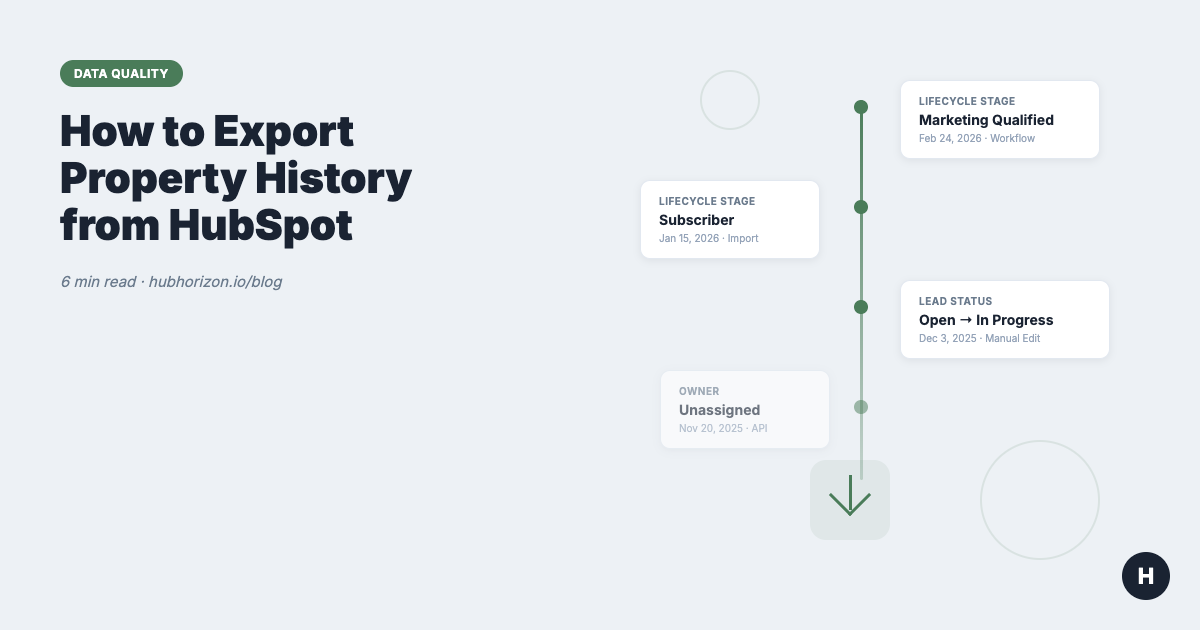
Property history is HubSpot's record of every value change for every property on every CRM record. Each entry logs what the value was, what it changed to, when the change happened, and what triggered it (user edit, workflow, import, API call, or integration sync).
This applies to contacts, companies, deals, and tickets — all standard and custom properties. HubSpot stores this history indefinitely; it doesn't expire or get pruned.
The history isn't just "before and after." It's a full timeline. If a contact's lifecycle stage changed five times over six months, you'll see all five changes with timestamps and sources. That level of detail is why property history matters for auditing and troubleshooting.
Three ways to export property history
Method 1: UI export (individual records)
This is the simplest approach for spot-checking a few records.
- Navigate to the record (contact, company, deal, or ticket)
- Find the property you're interested in
- Click the property name to open the detail panel
- Click "See history" to view the full change log
- Copy the data manually or take a screenshot
When to use this: You're investigating a specific record — a deal that moved backward, a contact whose email changed unexpectedly, or a company whose industry classification flipped. It's not practical for bulk analysis, but it's the fastest way to see what happened to one record.
Method 2: List export with history columns
This is the workhorse method for most teams.
- Create a list (active or static) containing the records you want to analyse
- Go to Contacts > Lists (or the relevant object)
- Select the list and click Export
- In the export dialog, select the properties you need
- Check "Include history for selected properties" (this adds timestamped columns for each property's previous values)
- Choose CSV or XLSX format
- Download the export file
When to use this: You need history for a specific set of records — everyone who entered a workflow last quarter, all deals that closed in January, or every contact with a lifecycle stage of "Customer." The list acts as your filter; the export gives you the timeline.
Limitation: HubSpot includes history for the selected properties only. If you need history across 20 properties, your export will have a lot of columns. Plan your export around the specific properties that matter.
Method 3: API export (propertiesWithHistory)
For developers and teams with technical resources, the HubSpot CRM API supports property history natively.
The key parameter is propertiesWithHistory. Add it to any CRM object read endpoint:
GET /crm/v3/objects/contacts/{contactId}?propertiesWithHistory=lifecyclestage,hs_lead_status
Or in a batch read:
POST /crm/v3/objects/contacts/batch/read
{
  "inputs": [{"id": "123"}, {"id": "456"}],
  "properties": ["email", "firstname"],
  "propertiesWithHistory": ["lifecyclestage", "hs_lead_status"]
}
The response includes a propertiesWithHistory object with timestamped entries for each property.
When to use this: You're building automated audits, running data quality checks programmatically, or integrating property history into a monitoring pipeline. This is the approach HubHorizon uses to track property changes across your portal.
Limitation: The API returns up to 100 history entries per property per record. For properties that change very frequently (like notes_last_updated), you may not get the full history.
When to export property history
Knowing how to export is straightforward. The harder question is when it's actually worth doing. Four situations come up repeatedly.
1. Data quality audits
Every serious data quality audit should include a property history review. It answers questions that current-state snapshots can't:
- How often do key properties change? (High volatility might indicate process problems)
- What source triggers the most changes? (If an integration is overwriting values, you'll see it here)
- Are lifecycle stages progressing forward or bouncing around? (Backward movement is a red flag)
Property history turns your audit from "what is the data?" to "how did the data get this way?" — and the second question is usually the one that actually matters. The data quality dimensions framework gives you a structured way to evaluate what you find.
2. Migration prep
If you're migrating to a new CRM, switching HubSpot portals, or merging two portals after an acquisition, you'll want a copy of your property history before anything moves.
Export the full history for critical properties (lifecycle stage, deal stage, lead status, owner, pipeline) before the migration. This gives you:
- A rollback reference if the migration corrupts data
- Evidence of the pre-migration state for comparison testing
- Historical context that the target system may not import
Migrations go wrong more often than anyone admits. The teams who export their property history beforehand are the ones who recover fastest.
3. Rollback evidence
When someone accidentally overwrites data — through a bulk import, a misconfigured workflow, or an integration gone rogue — property history is how you undo it.
The property hygiene guide covers prevention. But when prevention fails, you need recovery. Export the property history for affected records, filter to the timestamp before the incident, and use those values to restore.
Without property history, you're rebuilding from memory and guesswork. With it, you have exact values and timestamps.
4. Governance tracking
For teams with compliance requirements or internal data governance policies, property history export creates an audit trail.
- Track who changed what, when, and through which channel
- Verify that workflows are modifying properties as designed
- Confirm that integrations aren't overwriting governed fields
- Build evidence for data governance reviews
This matters more as organisations layer AI tools on top of their CRM. If you're evaluating your portal's AI readiness, you need to understand how your data changes over time. AI models trained on inconsistent data produce inconsistent results, and property history is how you spot that inconsistency before the AI does.
Common pitfalls
Exporting too many properties at once. Start with the 5-10 properties that matter most for your use case. A 50-property history export creates a spreadsheet that's nearly impossible to analyse.
Forgetting to filter by date. If a property has been tracked for years, the history can be enormous. Define a date range before you export — last 90 days covers most auditing needs.
Ignoring the source column. The "source" field tells you why a change happened (manual edit, workflow, import, API, integration). This is often more valuable than the values themselves. A property that changes 50 times via integration sync has a different problem than one that changes 50 times via manual edits.
Not establishing a baseline. Export property history before you make changes, not just after problems appear. Regular baseline exports (quarterly is a good cadence) give you clean comparison points.
Property history and portal health
Property history is one of the data sources that feeds into your portal's overall health score. High change frequency, backward lifecycle movement, and conflicting source updates are all problems you'd never catch from a single snapshot.
If you're running regular portal health checks, property history adds the temporal dimension. It's the difference between "your data looks messy" and "your data started getting messy three months ago when you connected that new integration."
The RevOps maturity model treats property governance as a level 3-4 capability. If you're not exporting and reviewing property history, you're likely operating at level 1-2 — reactive rather than proactive.
Frequently Asked Questions
Does the export include all historical values for a property?
Through the HubSpot UI and list exports, yes — you get the full history for each selected property. Through the API, there's a limit of 100 history entries per property per record. For most properties, 100 entries covers the complete history. Properties that change hundreds of times (like notes_last_updated or high-frequency integration syncs) may have truncated history via API.
Can I restore property values from an exported history?
Not directly through HubSpot's UI — there's no "restore to previous value" button. But with an exported history file, you can identify the correct pre-incident values and use a bulk import or API call to set them back. This is manual but reliable. Tools like Insycle can also help with bulk value restoration.
What format is the property history export file?
List exports produce CSV or XLSX files. The history columns follow a pattern: each selected property gets additional columns for previous values and timestamps (e.g., lifecyclestage - Previous Value 1, lifecyclestage - Previous Value 1 Timestamp). API responses return JSON with a propertiesWithHistory object containing arrays of {value, timestamp, sourceType, sourceId} entries.
Start your free portal health check at hubhorizon.io — includes property health analysis across all your CRM objects. View pricing plans for full diagnostics and continuous monitoring.
Peter Sterkenburg is the founder of HubHorizon, a continuous portal health analysis platform for HubSpot. He's spent years in the weeds of CRM data quality — analysing property structures, diagnosing data drift, and building tools that surface what spreadsheets can't.
Related articles
The HubSpot Pipeline Management Cheat Sheet: Views, Signals, and Reviews in One Place
One-page HubSpot pipeline reference: 6 deal health signals, warning thresholds, 9 saved view recipes, stage design checklist, and review prep guide.
Read articleYour HubSpot Pipeline Is a Data Structure. Most Are Broken.
Your deal pipeline is a data structure. When stages, exit criteria, and required properties break, forecasting and AI produce garbage. Diagnose and fix it.
Read articleWhy Your HubSpot Sales Forecast Is Wrong — and It's Not a Process Problem
Most forecasting failures are data failures, not process failures. Diagnose and fix the data foundation your HubSpot forecast depends on.
Read article