

How to Find and Remove Unused HubSpot Properties (Without Breaking Anything)
Step-by-step guide to finding unused HubSpot properties — zombie fields, low-fill properties, and orphan fields — and safely removing them without breaking workflows, reports, or integrations.

Peter Sterkenburg
HubSpot Solutions Architect & Revenue Operations expert. 20+ years B2B SaaS experience. Founder of HubHorizon.
Last month I ran an analysis on a portal that had been live for four years. The RevOps manager had inherited it from two predecessors and was fairly confident things were "mostly organised."
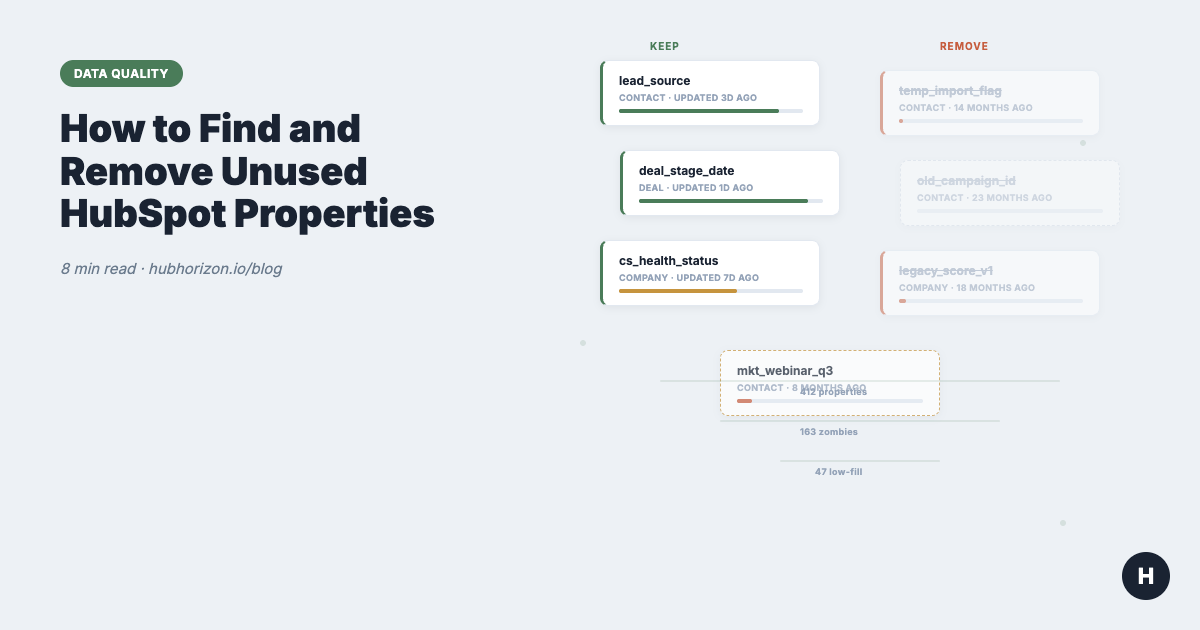
The numbers told a different story. Of their 412 custom properties, 163 hadn't been updated on a single record in over a year. Another 47 had fill rates below 2% — technically alive but practically useless. The portal was carrying 210 dead properties, and every team member scrolled past them daily without thinking twice.
That's what addition bias does. Teams add properties freely but almost never remove them. It's easier to create a new field than to investigate whether an existing one already does the job. Over two or three years, the accumulation becomes structural. Your property list turns into an archaeological dig — layers of decisions from people who no longer work there, integrations that were disconnected years ago, and campaigns that ran once and were never repeated.
Cleaning this up is straightforward. It just requires a methodical approach so you don't break anything in the process.
What counts as an unused property?
An unused HubSpot property is any custom property that no longer has an active business purpose. Not all unused properties look the same, though. There are four categories, and each needs a different approach:
Zombie properties are custom properties that haven't been updated on any record in 365 or more days. They're the easiest to identify — sort by last updated date and everything at the bottom of the list is a candidate. Zombies cost you up to 20 points on your data quality score and add noise to every export, filter dropdown, and property selector in your portal.
Low-fill properties have a fill rate below 5% — meaning fewer than 1 in 20 records have a value. These are properties where data collection failed. Maybe the form was removed, the integration stopped syncing, or the team simply stopped filling them in. Low-fill properties erode the completeness dimension of your data quality.
Orphan properties aren't referenced by any workflow, form, report, dashboard, list, or integration. They exist in isolation, created for a purpose that no longer applies, with no automated process reading or writing to them. Orphans are the safest to remove because nothing depends on them.
Truly abandoned properties combine all three signals: no recent updates, low fill rates, and no dependencies. These are the obvious candidates for immediate deprecation.
A property might be unused by one definition but not another. A field with a 90% fill rate but no workflow references might still be critical for reporting. A field with recent updates but 1% fill rate might only be populated by an integration for a handful of records. That's why you need to check all three signals before making a decision.
How to find unused properties in HubSpot
There are three methods, from manual to automated. Use whichever matches your tools and patience level.
Method 1: HubSpot property settings (manual)
This works for quick spot-checks on smaller portals.
- Go to Settings > Properties in your HubSpot portal
- Select the object type (Contacts, Companies, Deals, or Tickets)
- Filter to show only Custom properties (exclude HubSpot defaults — you can't delete those anyway)
- Sort by "Updated at" to see which properties haven't been touched recently
- Click into each property to check: Does it have a description? Is it referenced in any workflows? What's the approximate fill rate?
- Make a note of anything untouched for 6+ months
Limitation: HubSpot's UI doesn't show fill rates directly in the property list, and there's no bulk way to see dependency counts. For anything beyond 50 properties, this method is tediously slow.
Method 2: Export and spreadsheet analysis
This is the workhorse method for a thorough audit.
- Export your property list: Settings > Properties > Export all properties (CSV)
- Open the export in a spreadsheet
- Add columns for your assessment: "Last Updated" (from HubSpot), "Fill Rate" (you'll need a separate export or API call for this), "Dependencies" (manual check), "Decision" (keep/deprecate/delete)
- Sort by last updated date — flag anything older than 12 months
- Cross-reference with your workflow list: Automation > Workflows — search for each flagged property name
- Cross-reference with your forms: Marketing > Forms — check which properties are on active forms
- Cross-reference with your reports: Reports > Reports — search for property usage
This takes a solid afternoon for a mid-sized portal (200-400 properties). It's manual but thorough. If you want to understand how this fits into a broader audit, the data quality audit guide covers all 10 audit areas.
Method 3: Automated tools
The fastest approach, and the only one that scales for large portals.
HubSpot Data Quality Command Center (Professional and Enterprise tiers): Shows property anomalies and some usage data. It's useful but doesn't produce a single "unused properties" list or check workflow/form dependencies automatically.
HubHorizon: Our analysis identifies zombie properties (365+ days without updates), calculates fill rates per property, flags naming convention issues, and detects probable duplicates. The data quality score gives you a single number to track improvement over time. You get results in under 5 minutes without exporting anything.
For a broader comparison of what's available, see our audit tools comparison.
The 90-day cleanup process
Don't delete properties the same day you find them. That's how things break. Use a phased approach instead.
Weeks 1-2: Identify and categorise
Run your audit using any of the methods above. For each unused property, assign one of four categories:
- Delete — No data, no dependencies, no historical value. Safe to remove now.
- Deprecate — Has some data or unclear dependencies. Needs a waiting period.
- Investigate — Might be used by an integration or process you don't fully understand. Needs research.
- Keep — Unused by automation but still valuable for reporting or historical reference.
Most properties will land in "Deprecate" or "Investigate." That's normal. The point of this phase is triage, not action.
Weeks 3-4: Investigate dependencies
For every property in the "Investigate" bucket:
- Search your workflows for the property's internal name (not the label — internal names are what workflows reference)
- Check active forms for the property
- Search reports and dashboards
- Ask your integration partner or check your integration logs — some tools sync data to properties that aren't visible in HubSpot's UI dependency view
- Ask the team: "Does anyone use this field?" (You'd be surprised how often someone relies on a property that looks abandoned)
Move investigated properties to "Delete," "Deprecate," or "Keep" based on what you find.
Month 2: Deprecate
For everything in the "Deprecate" bucket:
- Move the property to a group called "Deprecated" (create this group if it doesn't exist)
- Rename the property's label to include a prefix:
[DEPRECATED] Original Name - Update the description: add the deprecation date, who deprecated it, and why
- If workflows reference it, update those workflows first — either remove the property reference or switch to the replacement property
- Remove the property from any active forms
The deprecated group makes these properties visible but clearly marked. Anyone who goes looking for them can still find them. This is your safety net.
Month 3: Archive and delete
After 90 days in the deprecated group with no complaints:
- Export the property history for any property that contains data worth preserving
- Document the deletion in a changelog or shared doc (property name, internal name, what it stored, date deleted)
- Delete the property from HubSpot
If someone does complain during the 90-day window, you've lost nothing — the property is still there, just renamed and moved.
What to check before deleting a property
This is the safety checklist. Run through every item before deleting any property, even one you're confident is unused.
- Workflow references — Search all workflows (active and inactive) for the property's internal name. Inactive workflows might be reactivated.
- Form references — Check both published and draft forms. A form in draft might be scheduled for launch.
- Report and dashboard references — Search your reports library. Custom reports often reference properties that nothing else uses.
- List filter references — Active and static lists might use the property as a filter criterion. Deleting the property breaks the list.
- Calculated property dependencies — If other properties use this one in a calculation formula, deleting it breaks the calculation silently.
- Integration mappings — Check any connected tools (Salesforce, Marketo, Segment, Zapier, custom APIs). Integration mappings often reference properties by internal name and will throw sync errors if the property disappears.
- Sequence references — Sales sequences might use property tokens in email templates.
- Deal/ticket pipeline stage requirements — Some pipelines require specific properties at stage transitions. Removing a required property blocks deals from moving.
If you find references in any of these locations, you need to update or remove those references before deleting the property. Deleting the property first causes silent failures. Workflows skip steps, reports show blank columns, integrations throw errors nobody notices until the data is already wrong.
Common mistakes
Deleting properties with historical data
HubSpot stores property history indefinitely: every value change, timestamp, and source. When you delete a property, that history is gone permanently. If the property ever contained data that matters for compliance, auditing, or trend analysis, export it first.
Removing integration properties
Some integrations create properties and sync data to them silently. The property might look unused because nobody fills it in manually, but an integration writes to it every hour. Check your connected apps before deleting any property you didn't create yourself.
Ignoring HubSpot default properties
You can't delete HubSpot's default properties, but you can hide them. Don't confuse "unused default property" with "unused custom property." Default properties sometimes hold data populated by HubSpot internally (like hs_analytics_source) even if nobody on your team explicitly fills them in. Leave these alone.
Cleaning up without documenting
If you delete 50 properties and don't document which ones or why, the next person who inherits the portal will have no idea what happened. Worse, they might recreate properties you just removed. Keep a simple log: property name, internal name, what it stored, why it was removed, date removed.
Maintaining clean properties long-term
Cleanup is the easy part. Staying clean is harder. The same addition bias that created the mess will recreate it unless you change the process.
Three things that actually work:
Quarterly property review. Block 2 hours every quarter to run through the audit process above. Catch unused properties early — a 6-month-old unused property is much easier to remove than a 3-year-old one with unclear history.
Property creation governance. Require a description for every new custom property. Require a business justification. Assign an owner. This doesn't have to be bureaucratic — a Slack thread saying "I'm creating sales_demo_date for tracking demo scheduling in the pipeline" is enough. The point is that property creation becomes visible.
Automated monitoring. Tools like HubHorizon track your data quality score over time. When new zombie properties appear or fill rates drop, you catch it monthly instead of discovering it during an annual panic audit. For the broader picture of where property hygiene fits into overall CRM health, see our property hygiene guide.
If your portal supports AI tools like Breeze, property cleanliness matters even more. AI models depend on well-named, well-populated properties to understand your data, and unused properties add noise that confuses the models. Cleaning up is one of the simplest things you can do to improve your portal's AI readiness.
Frequently Asked Questions
How many unused properties is too many?
There's no magic number, but a healthy rule of thumb is that fewer than 20% of your custom properties should be unused. If you have 200 custom properties and 80 are unused, that's a problem. Most mid-market portals we analyse have 30-50% unused properties — it's almost universal. The issue isn't having a few unused properties (that's normal during transitions). It's when unused properties outnumber active ones that the clutter starts costing you real productivity.
Can I recover a deleted HubSpot property?
No. Once you delete a custom property in HubSpot, it's gone permanently, including all historical values. HubSpot does not have an "undo delete" for properties. This is why the deprecation-first approach matters so much. Move properties to a deprecated group, wait 90 days, and only then delete. If you need the data for compliance or auditing, export the property history before deleting.
Should I archive or delete unused properties?
HubSpot doesn't have a formal "archive" feature for properties. The closest equivalent is moving properties to a "Deprecated" group and renaming them with a [DEPRECATED] prefix. This hides them from everyday use while keeping the data intact. Delete only when you're certain the property has no current or future value and you've exported any data worth keeping.
How often should I audit for unused properties?
Quarterly works for most teams. If your portal has rapid property creation (from integrations, multiple teams creating fields, or frequent campaign launches), monthly spot-checks are better. Consistency matters most. A quarterly rhythm catches problems early enough to address them before they compound. Use the data hygiene cheat sheet to build auditing into your regular CRM maintenance routine.
Start your free portal health check at hubhorizon.io — see your unused properties, zombie count, fill rates, and data quality score in under 5 minutes. No credit card required. View pricing plans for continuous monitoring.
Peter Sterkenburg is the founder of HubHorizon, a continuous portal health analysis platform for HubSpot. He analyses hundreds of portals and has strong opinions about property naming conventions — and even stronger opinions about properties that haven't been touched since 2023.
Related articles
The HubSpot Pipeline Management Cheat Sheet: Views, Signals, and Reviews in One Place
One-page HubSpot pipeline reference: 6 deal health signals, warning thresholds, 9 saved view recipes, stage design checklist, and review prep guide.
Read articleYour HubSpot Pipeline Is a Data Structure. Most Are Broken.
Your deal pipeline is a data structure. When stages, exit criteria, and required properties break, forecasting and AI produce garbage. Diagnose and fix it.
Read articleWhy Your HubSpot Sales Forecast Is Wrong — and It's Not a Process Problem
Most forecasting failures are data failures, not process failures. Diagnose and fix the data foundation your HubSpot forecast depends on.
Read article